Creating Countdown Timers in Paywalls
Plus, several other date-based features to use in your designs

Running sales or limited time offers is a fantastic way to bump up your revenue. Whether it's a seasonal occasion (like Black Friday or Cyber Monday sales) or simply a sales event unique to your app — the way your design expresses that sale can make all the difference.
For those reasons, several paywalls incorporate the notion of time to convey a sense of urgency to the sale. It's a compelling technique, too. How many of us have bought something because we knew the sale was going to end soon?
Take Waterllama, for example. Its offer here "ends soon":
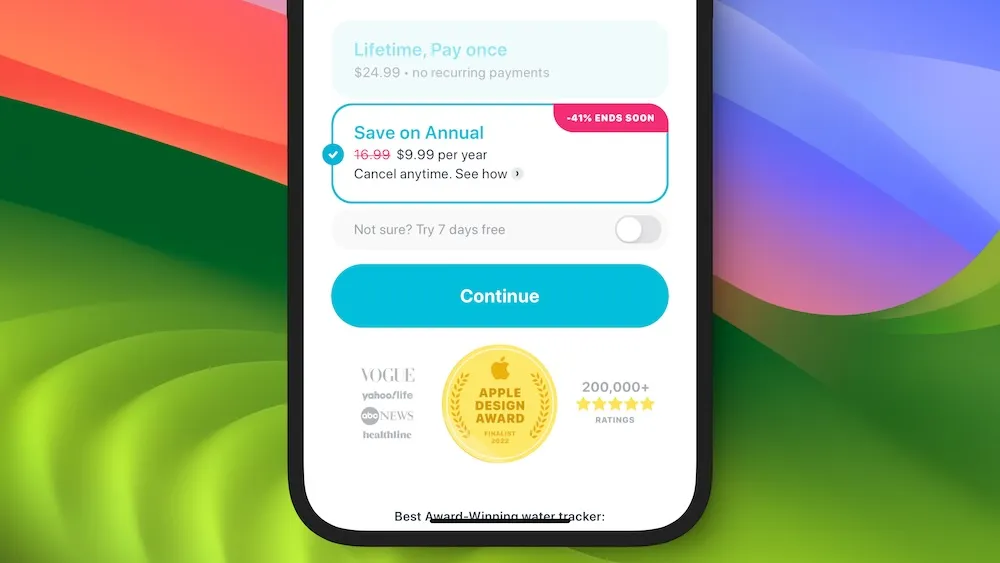
It's a bit ambigious by design, what's "soon" in this case? If I'm interested in Waterllama, I'm more inclined to convert. I don't want to open it up tomorrow and risk losing out on the offer.
Or, reference the paywalls in the hero image above. We see a few different examples of how to display the timing of an offer:
- "Sale ends in 11 hours"
- "Ends in 4 days"
- "Sale ends in 54h 46m 13s"
Each one is a powerful way to help nudge someone towards the offer. If they know it's gone soon, someone that's in-between a "yes" or a "no" may likely swing over to "yes". One of the most popular and effective patterns to do this is a countdown timer. And, a live one, too. Seeing that timer tick, tick, tick flips a convincing switch in consumer behavior.
And now, it's easier than ever to use them with Superwall.
We've extended our custom Liquid Templating engine to support all kinds of date-based operations. Our docs have been updated with all of the technical details, but here — I'll focus on how to add a countdown timer to any of your paywalls today.
The basics
Superwall has added a useful variable, state.now, that will
always represent the current time. It's perfect to use for a countdown
timer along with our new Liquid filter, countdown_from.
Here's all you need to know to get started with the filter:
{{ a_date_string | countdown_from: state.now }}Adding that (and replacing "a_date_string" with the date you need) in any text component in Superwall's paywall editor would give you a result that reads something like "54:04:03" — representing hours, minutes, and seconds. Of course, the end result will depend on the date that you're counting down from.
Optionally, you can provide two parameters:
- Style: This changes how the text is displayed. You can make a shorter time string, a detailed one and more.
- Max Unit: The maximum unit to display in the result, such as years, months, weeks, etc.
Be sure to check out the docs to see all of the options.
Examples
If we wanted to show a countdown in days, then we could do something like this:
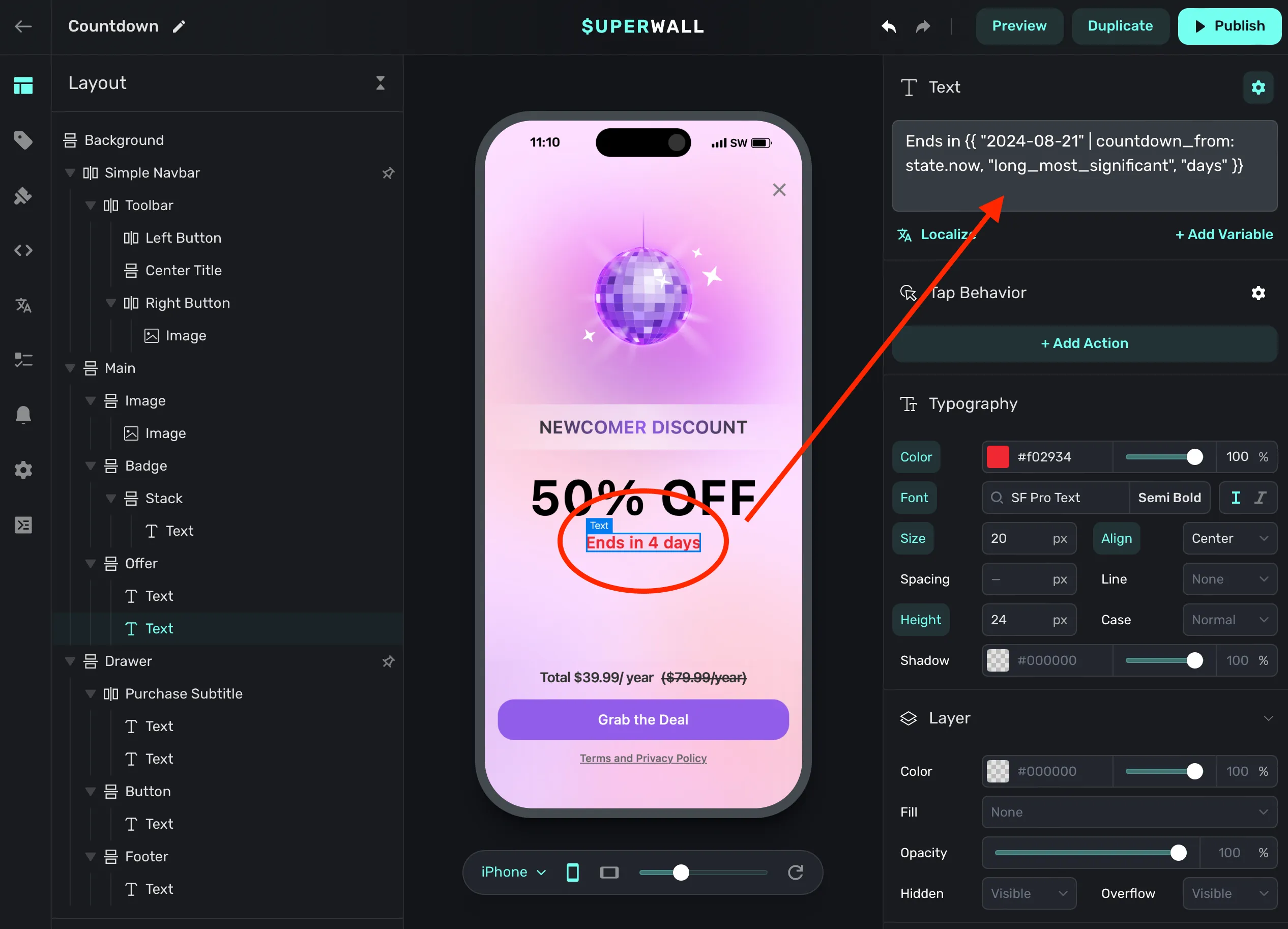
Notice how we used a style of long_most_significant and max
unit of days. Now, each day someone visits the paywall — it'll
accurately update with the number of days left in the sale.
Or, you could provide a longer-form version. This would show the seconds ticking away. Paired with a monospaced font, this design is used in several high-performing apps:
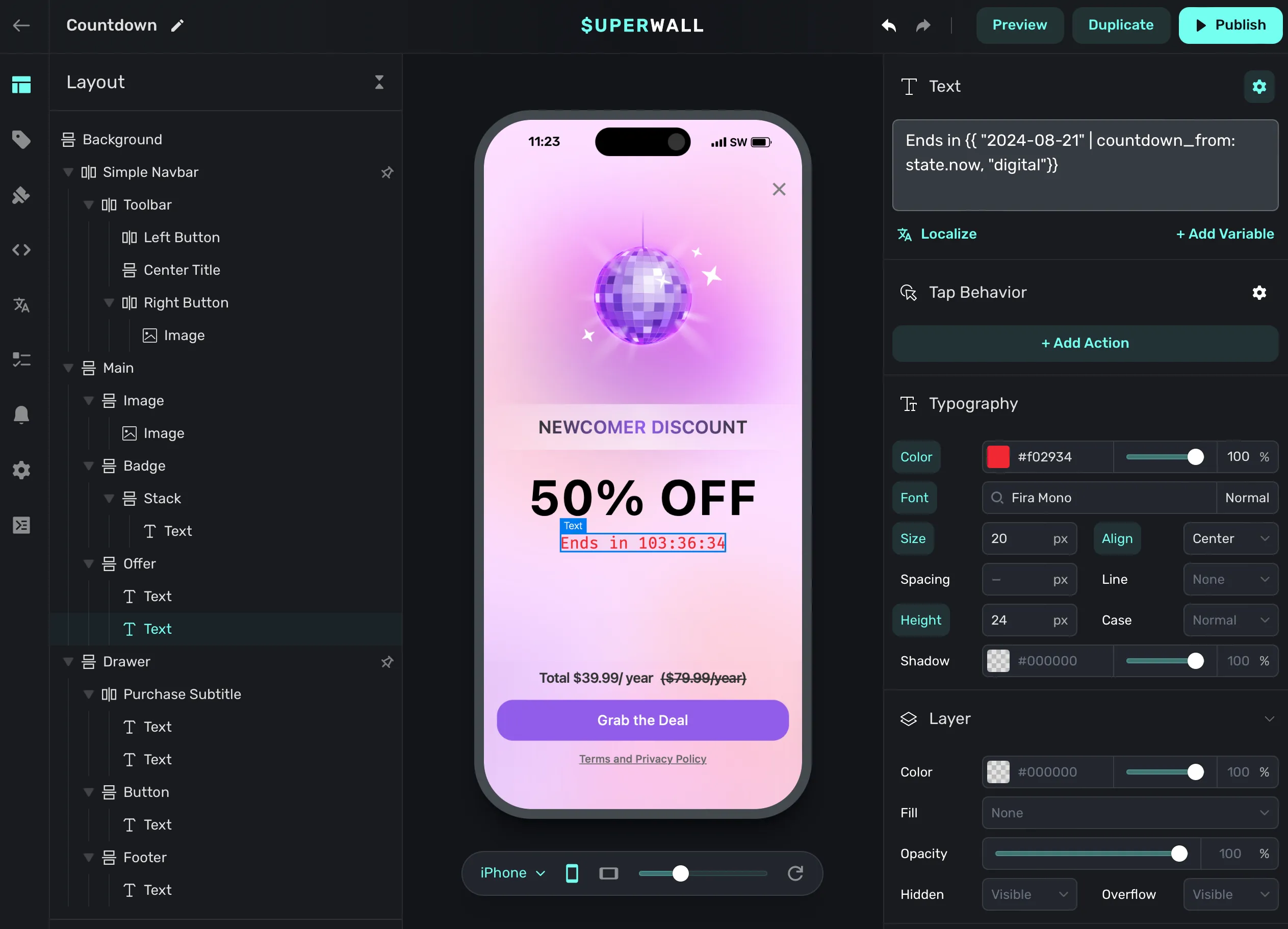
Install based timers
Another effective pattern we see at Superwall is what we call 'Install-Based Offers,' and the idea is simple: Offer a discount for a product in a time-boxed window that starts from the date someone installed the app.
For example, say you wanted to offer a discount in the first seven days someone installed the app. To set this up in Superwall, we'd do two things:
- Create an audience filter in a new, or existing, campaign.
-
In our paywall, we'll use a few different Liquid variables:
device.appInstallDateandstate.nowto create text that reads out "Sales ends in X days", or whatever you wish.
Also, ensure you've got a product created to represent the offer to use in a paywall.
First, we'll update (or create) a paywall to show the limited-time offer. I'll set some text at the top using the Liquid variables mentioned above:
Sale ends in {{ device.appInstallDate | date_add: 7, "days" | countdown_from: state.now, "long_most_significant", "days" }}At this step, we'd also attach the product we want to show for the offer in the paywall. With that done, we've got a paywall ready to go:
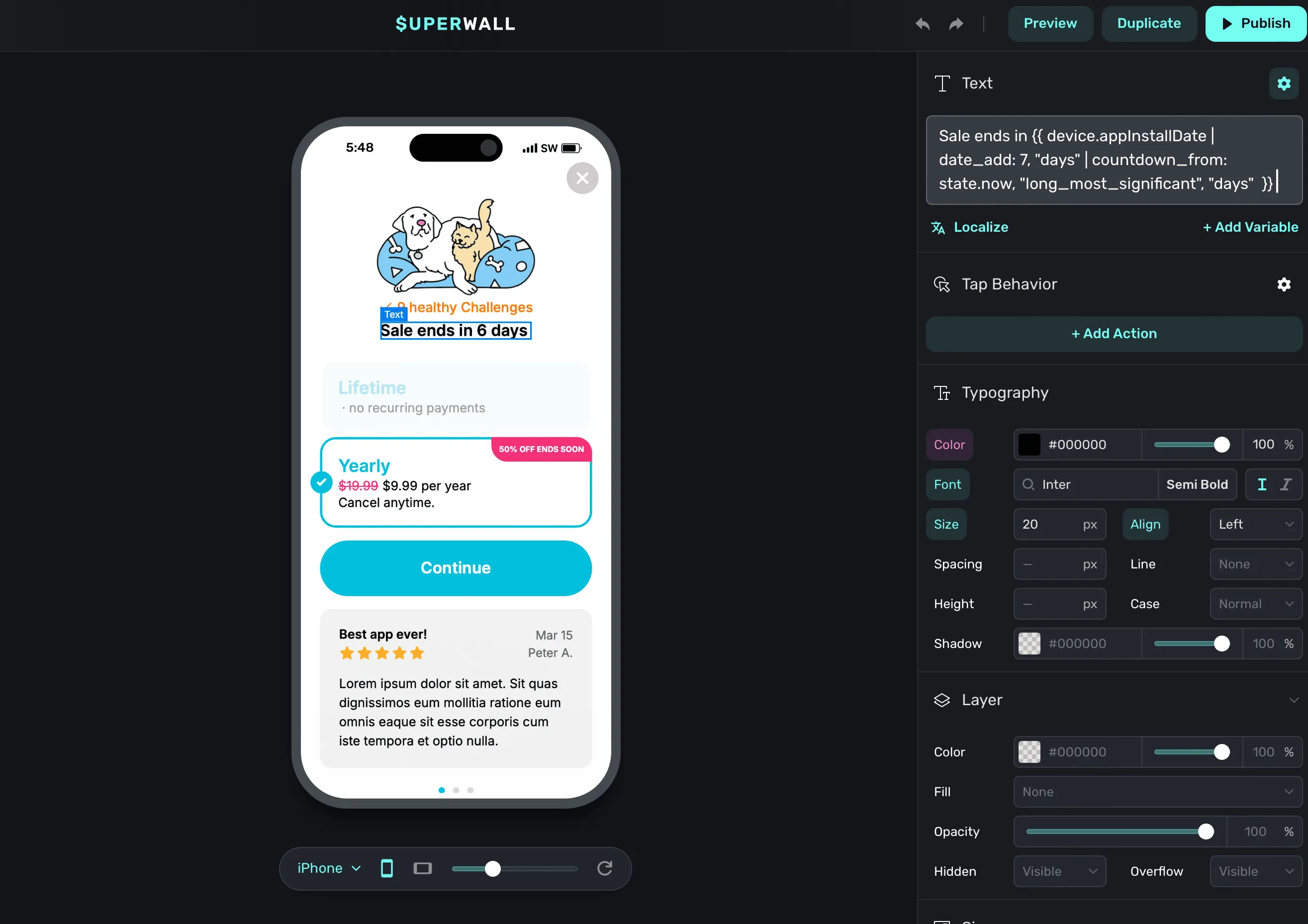
Next, for the campaign part, our filter would match any users who've installed our app in the last week. This way, we can be sure only those users will see this offer (and the paywall we've made for it). We can achieve that easily since Superwall tracks this for you automatically. Here's what the filter would look like:
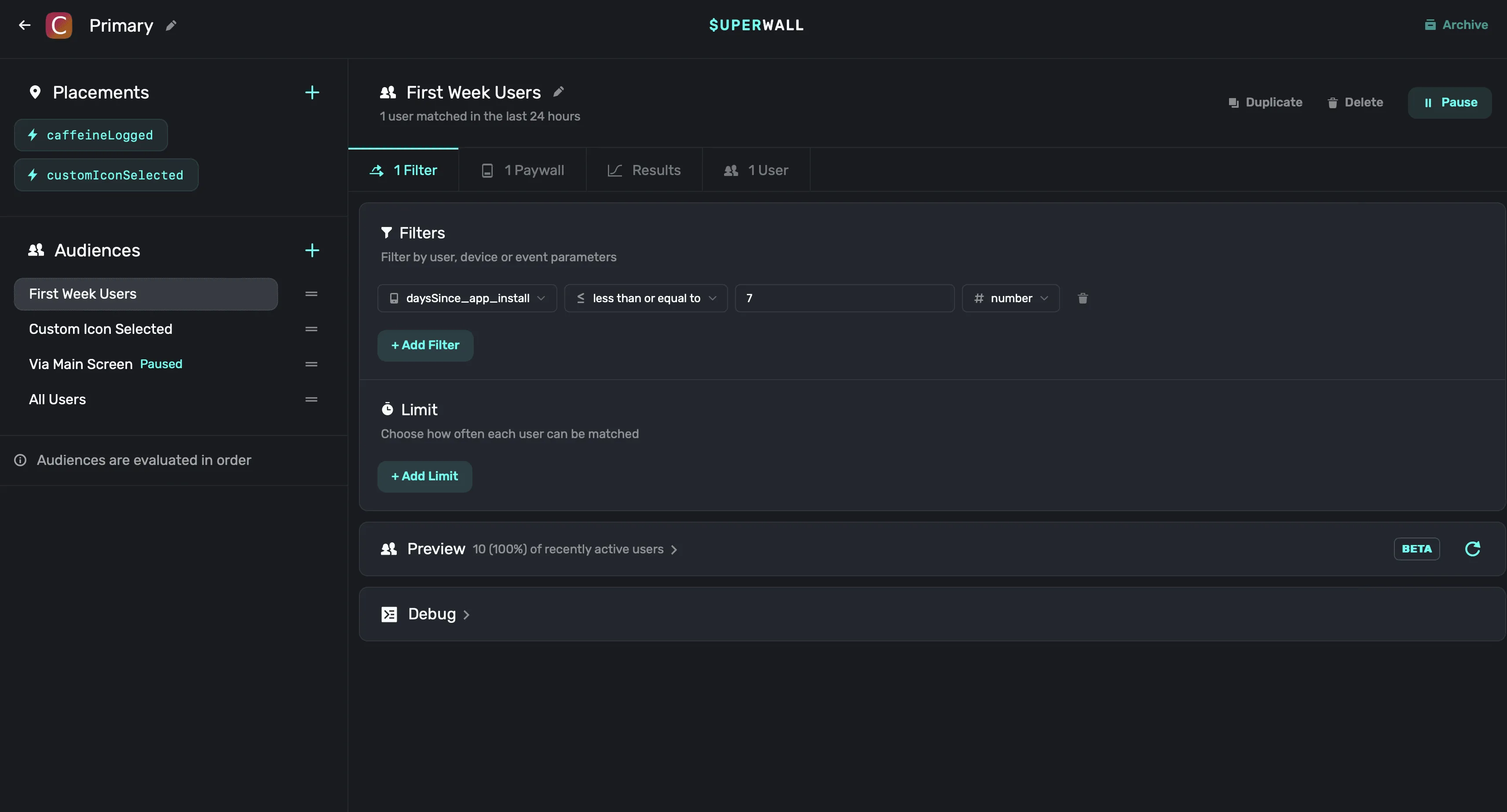
Remember, Superwall evaluates audiences in a given campaign top-to-bottom. In cases like this, I'd want this audience evaluated first. That's why in the picture of our campaign above, I moved the filter (named 'First Week Users') to the top. You can see that on the left-hand side of the campaign editor.
Finally, we'd also want to attach the paywall we made to show for any matches on this audience filter:
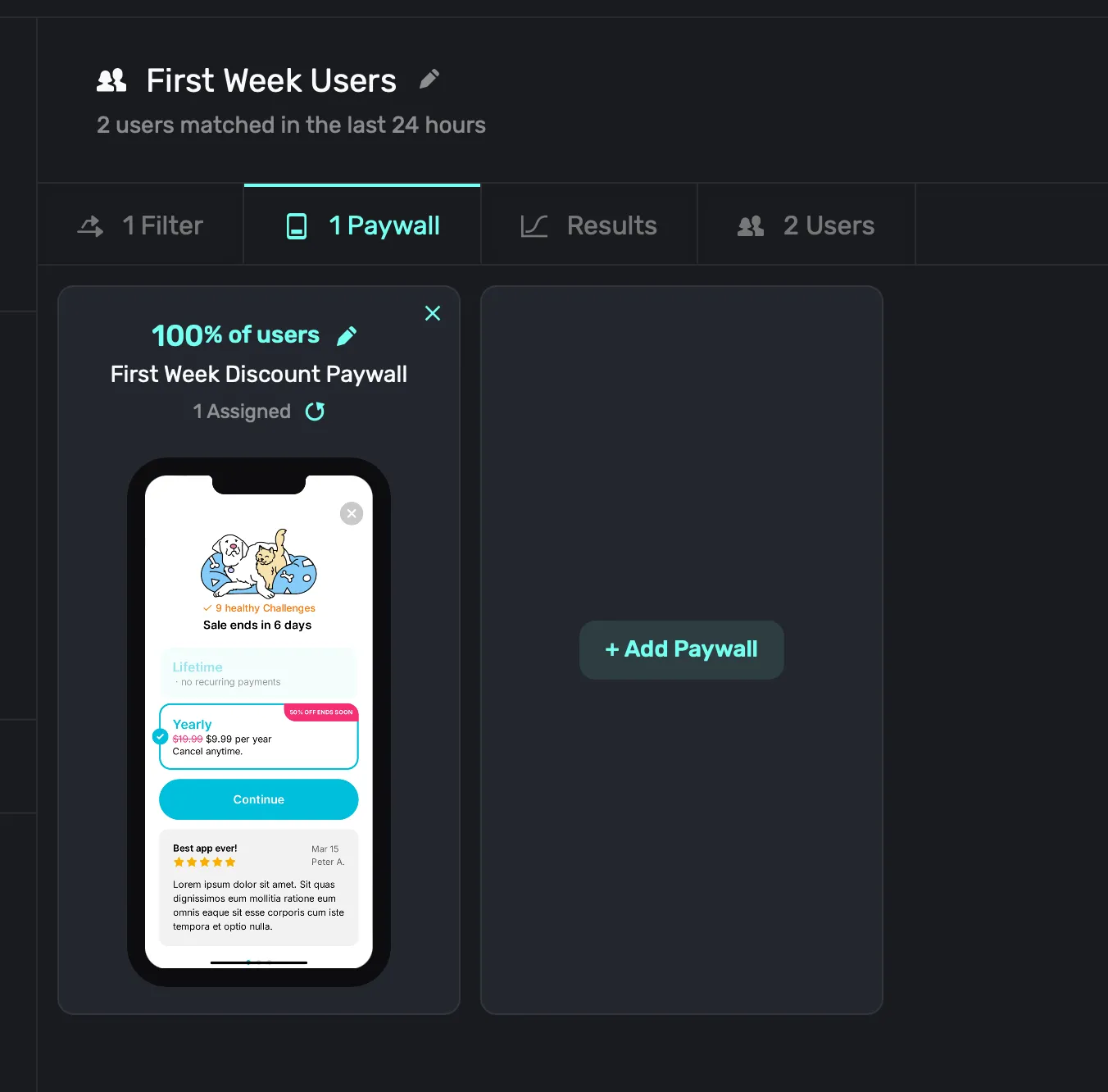
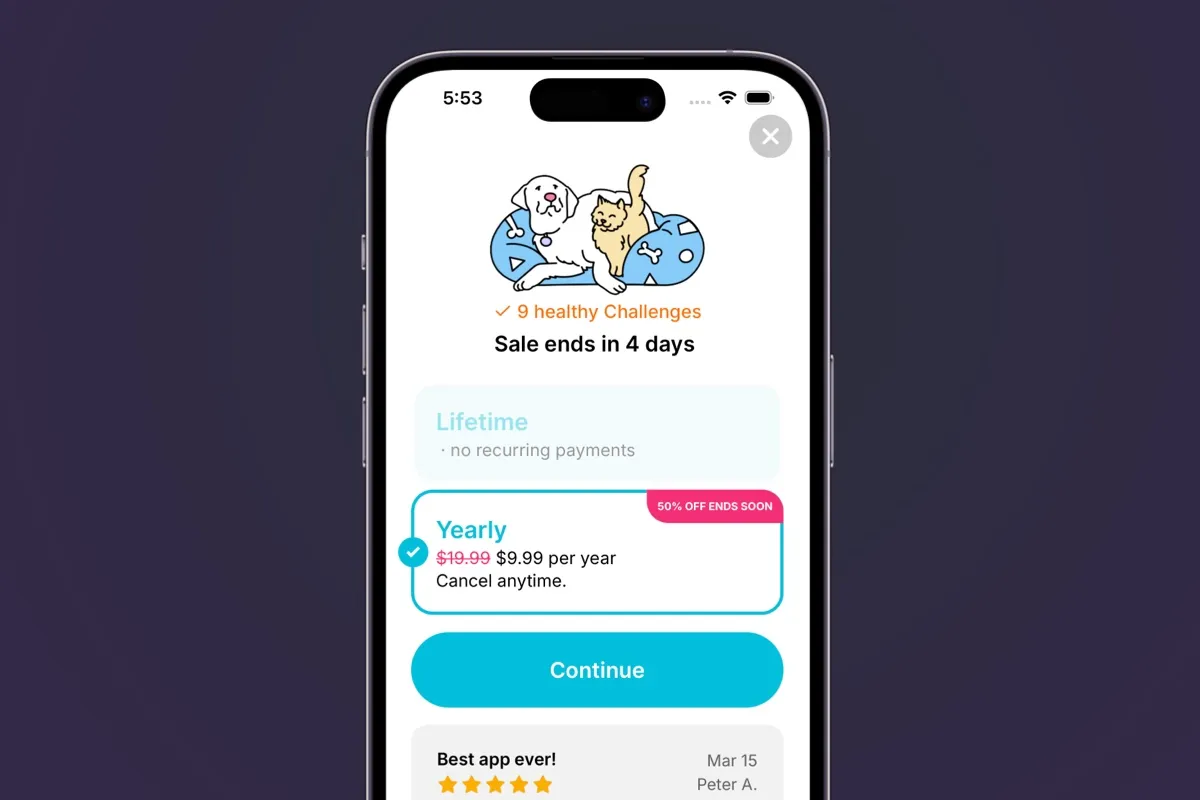
And that's it! If I run the app, and I've installed it within the last seven days — the offer will be presented (in this example, I installed it a few days ago):
Wrapping up
As you can see, it's simple to get started. Plus, in addition to the
countdown_from filter we've been using here, there is also
date_add and date_subtract available for use. As
always, if you've got Superwall integrated in your apps — you can try this
technique in production, right now!
We look forward to helping your apps grow, and features like this are just the start. If you're looking to grow your revenue, or use the most approachable, yet most powerful, paywall testing suite around — give Superwall a try. You can get started for free below.